
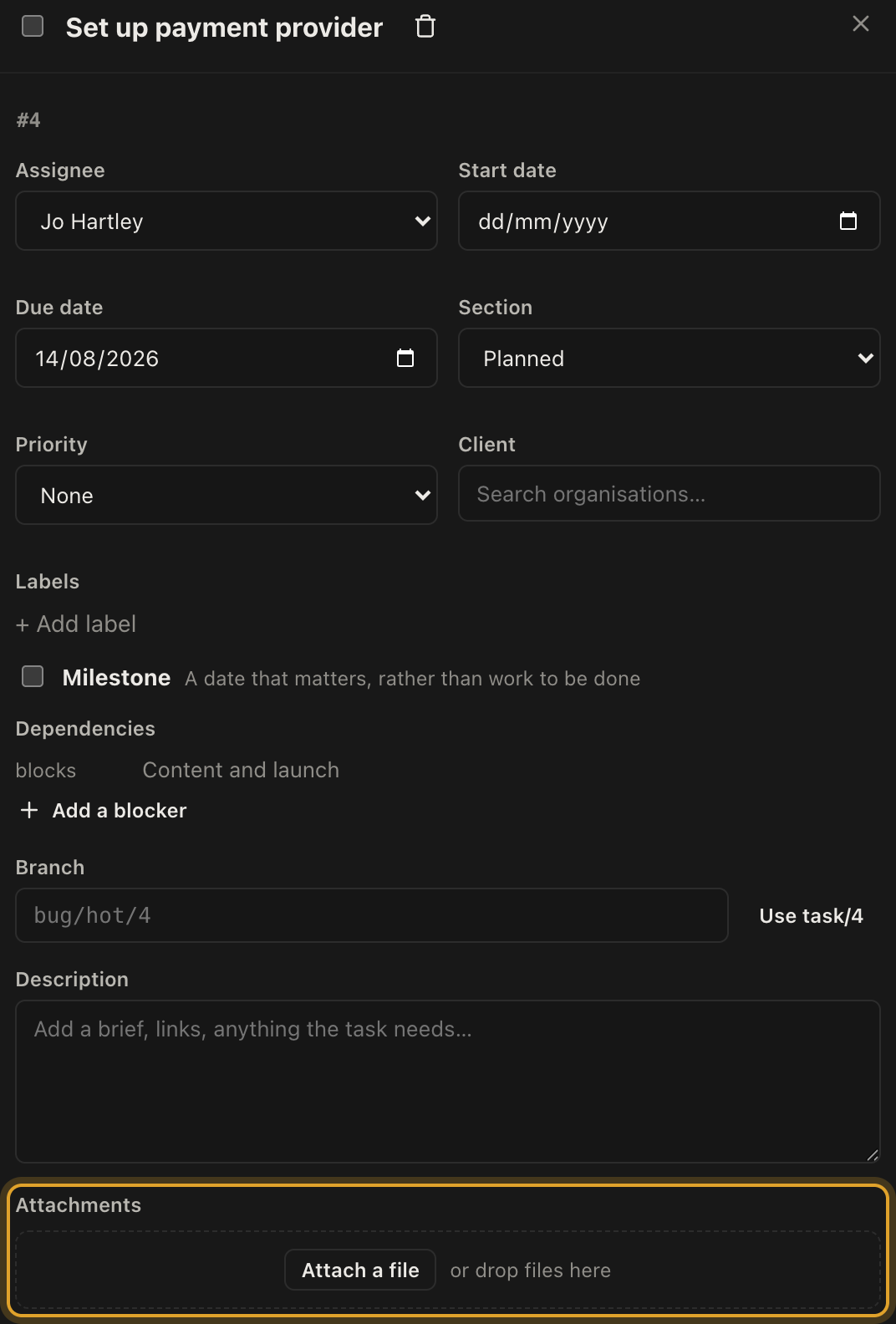
Any task can carry files. Open the task and use the Attachments panel.
Two ways to add
- Drag files straight onto the panel from your desktop.
- Or click the button and pick them.
Images show a thumbnail, so a panel of site photos is browsable rather than a list of file names. Everything else shows its name and size.
Where they also appear
Every file attached anywhere in a project also appears on that project's Files tab, so you can find something without remembering which task it went on.
In the list view, a paperclip and a count show which tasks have attachments, which is a quick way to see whether the evidence is actually there before you invoice.
Adding and removing is recorded
Attaching or removing a file is written to the project activity feed, with who did it. Files are part of the record of the work, so their history is kept the same way everything else is.
Deleting
Deleting an attachment removes the file itself, not just the link to it. There is no recycle bin, so treat it as permanent.
Deleting a task deletes its attachments, and the attachments of its subtasks, for the same reason.