
A section is a group of tasks inside one project. Sections are what turn a flat list of forty tasks into something a person can read.
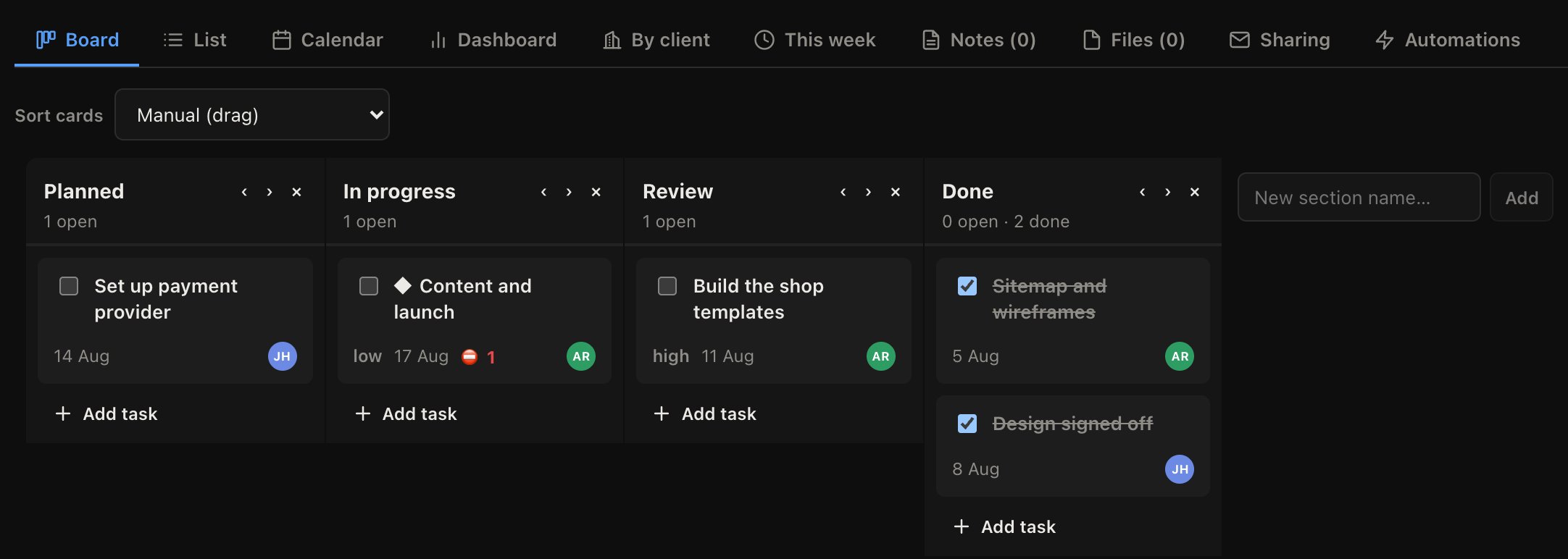
Adding one
On both the List and Board tabs there is a New section name box at the end. Type a name and press Enter.
That is the whole operation on either tab, and they are the same sections: a section added on the Board appears on the List, because they are two views of one thing rather than two lists.
Renaming one
Click the section name and type. It saves when you click away or press Enter.
Phases and the first edit
New projects start out showing the delivery phases from their board, so they are not empty. Those phases belong to the board and are shared by every project on it.
The first time you rename a section, add one, or delete one, that project quietly takes a copy of those phases as its own sections and then edits the copy. Nothing changes for any other project on the board, and you get a message saying it has happened.
This is why renaming works even though what you were looking at started out as a shared phase. You do not have to do anything to trigger it, and there is nothing to undo.
Naming sections
Sections work best as stages of the work or blocks of time. "Discovery", "Build", "Sign off". Or "Week 1", "Week 2". Or "Waiting on client", which is worth having as an explicit place rather than a note in someone's head.
What does not work is a section per person. Tasks already carry an assignee, and grouping by person means the project stops showing you the shape of the work.
Reordering and deleting
Sections can be reordered so the project reads in the order the work happens.
Deleting a section does not delete its tasks. They move to the ungrouped list at the end, so a wrong click cannot lose anybody's work.