
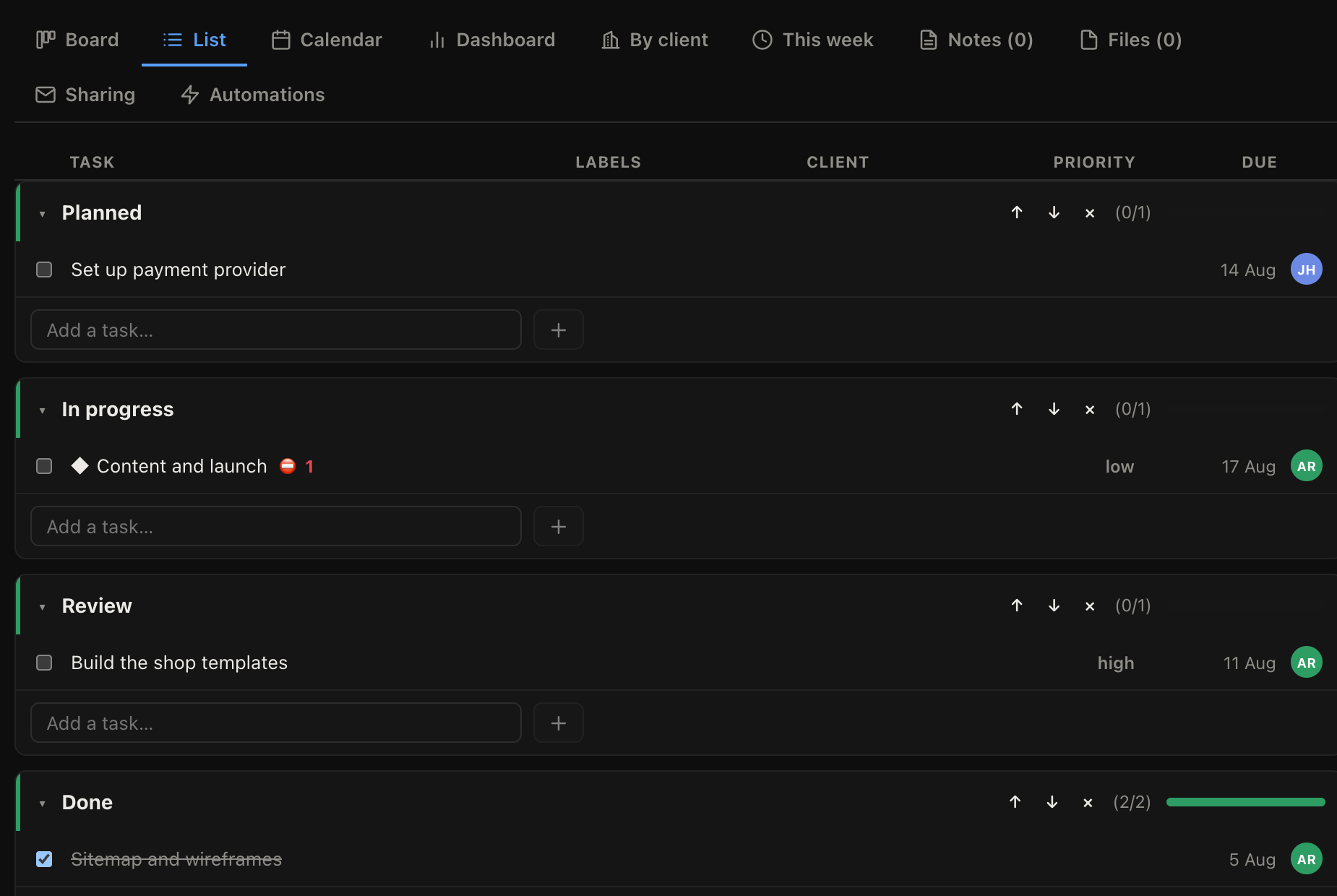
List is the default tab on a project because it answers "what is the state of this" faster than anything else. Tasks in rows, grouped by section, with a column for each thing you might need.
Editing without opening anything
Click a cell and change it there. Assignee, due date, client, labels and priority can all be set from the list.
A cell with nothing in it shows a faint hint rather than being blank, so you can see where something can be set. Click where it says Client and you get the picker, without opening the task.
This is what makes the list the right place to plan. Assigning twelve tasks and dating them takes about a minute here; through the task panel it takes ten.
The columns
| Column | Shows |
|---|---|
| Task | The name, plus its badges |
| Labels | Any tags |
| Client | The organisation it is for |
| Priority | High, medium or low, if set |
| Due | The due date, flagged when overdue |
| (last) | The assignee's initials |
The Task column carries three badges after the name, which is where the things you scan for live rather than in columns of their own:
- a diamond if the task is a milestone
- a paperclip and a number if it has attachments
- a red marker and a number if it is waiting on unfinished tasks
Each section header shows its own done count, and a progress bar once everything in it is finished.
Adding tasks and sections
There is a box at the end of each section to add a task to it, and a box at the end of the list to add a new section. Both take a name and Enter.
Adding from the list rather than from a modal is deliberate: writing out a plan is a fast typing job, and it should not need a dialog per line.