
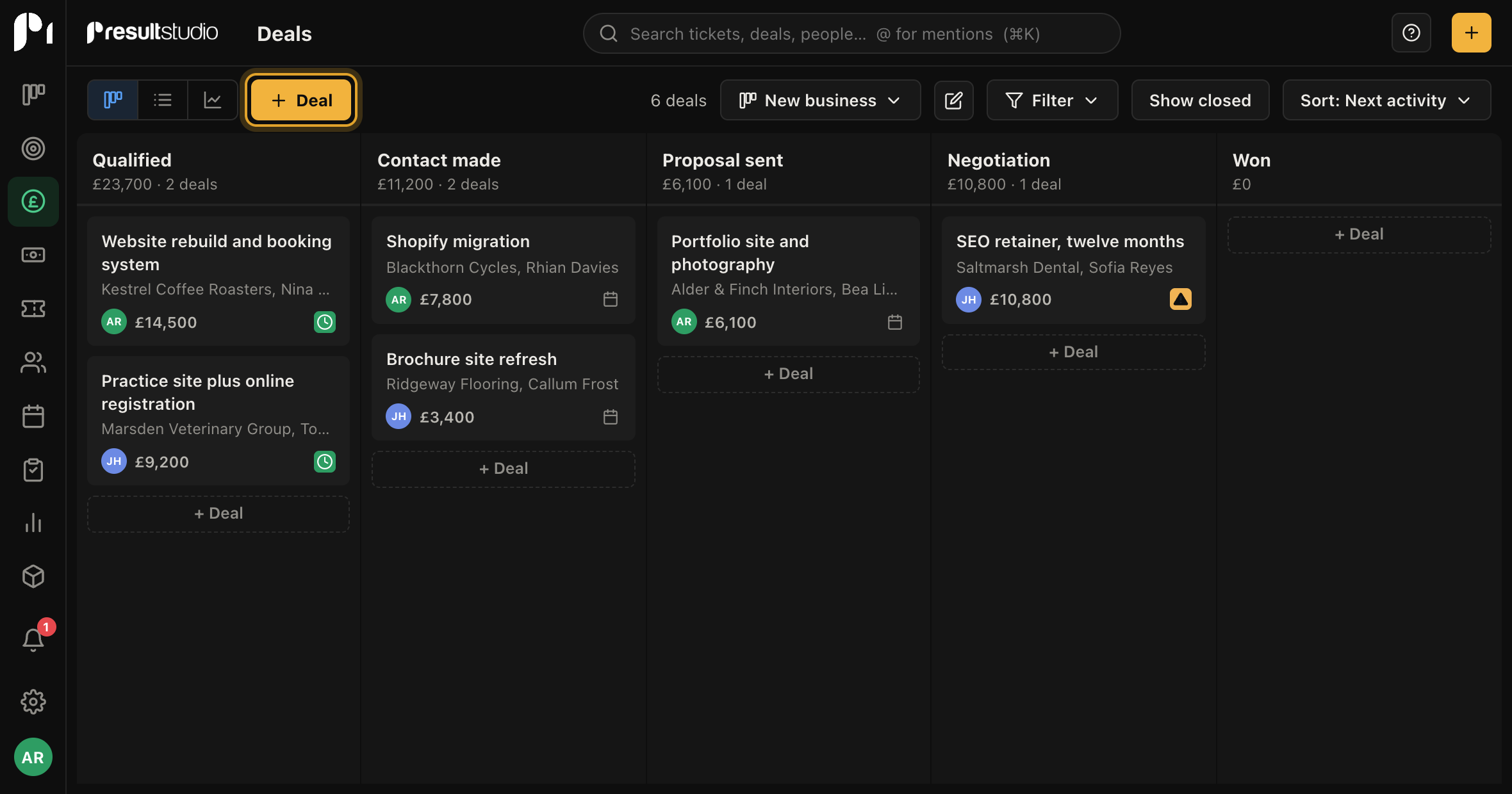
The board is the main view of your work in progress. One column per stage, one card per deal, and the total value of each column across the top.
Moving something on
Drag the card into the next column. That is the whole operation, and the change is saved as soon as you drop it. The stage total updates, the history on the deal records who moved it and when, and any automation attached to that stage runs.
If you would rather not drag, open the deal and use the stage bar across the top of the record. Both do the same thing.
The badge on each card
Every card carries a small badge showing the state of its next scheduled activity, which is the single most useful thing to know about a live deal. Hover it and it names the activity and when it is due.
| Badge | Meaning |
|---|---|
| Warning triangle | Nothing is scheduled at all |
| Down arrow | Something is overdue |
| Clock | Something is due today |
| Calendar | Something is scheduled for a later date |
The warning triangle is the one to watch. A deal with nothing scheduled against it is a deal nobody has agreed to do anything about, and those are the ones that quietly go cold.
Rotting
If a deal sits in one stage longer than that stage allows, the card is flagged as rotting. The limit is set per stage, so "Quoted" can be given a fortnight while "Awaiting parts" is given two months.
The filter menu has a rotting only switch, which turns the board into a list of everything that has stalled. It is a good Monday morning habit.
Filtering and sorting
The filter menu narrows the board by owner, label, value and more. The sort menu orders the cards inside each column: by next activity, date added, value, title or expected close date.
Both stay put as you move around, so you can set the board to "my work, most urgent first" and leave it that way.
The three drop zones
Pick up a card and three zones appear along the bottom.
- Won closes the deal as won and asks nothing further.
- Lost closes it as lost and asks why, choosing from your own list of reasons.
- Delete removes it, and only appears if your permissions allow deleting.
Won and lost are covered properly in Marking work won or lost.
Other views of the same thing
The switch at the top right changes between the board and the list. The list is better for bulk work: it has columns you choose, sorting, multi select and inline editing. The forecast view groups the same deals by expected close date instead of by stage.