
Everything is reached from the narrow rail down the left. Hover any icon and it tells you what it is.
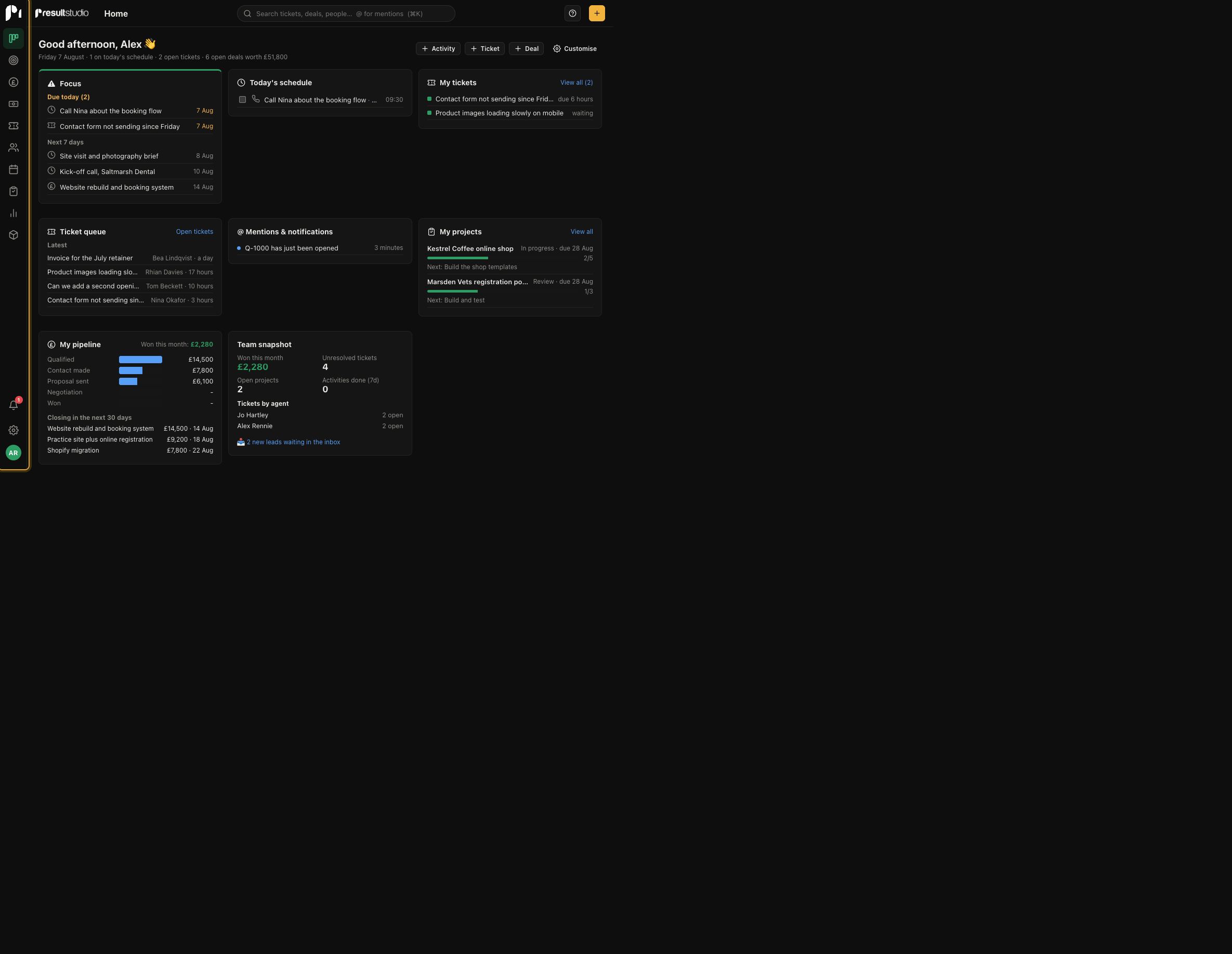
The rail, top to bottom
| Icon | Section | What lives there |
|---|---|---|
| Home | Home | Your own day: what is overdue, what is due, what has just come in |
| Target | Leads | Enquiries that have not become deals yet, plus web forms and live chat |
| Pound | Deals | The board, the list, and the forecast |
| Note | Revenue | Proposals, agreements, invoices and payments |
| Ticket | Tickets | The support queue |
| People | Contacts | People and organisations |
| Calendar | Activities | Everything scheduled, as a list or a calendar |
| Clipboard | Projects & Tasks | Delivering the work |
| Chart | Insights | Reports and dashboards |
| Box | Products | What you sell, and what it costs |
Some of these only appear if your permissions allow them. Revenue and Insights in particular are commonly switched off for staff who should not see what things are worth. If you cannot see an icon a colleague can, that is why, and it is deliberate.
At the bottom sit the notification bell, Settings, and your own avatar. The avatar menu is where you switch workspace, change your password, and turn dark mode on and off.
Search
The search box at the top searches everything at once: deals, people, organisations, tickets, projects and notes. Results are grouped by type, and the things you have looked at recently appear as soon as you click into the box before you have typed anything.
The "+" button
The button at the top right creates something, and what it creates depends on where you are. On the support queue it opens a new ticket. Everywhere else it creates a deal. It is the fastest way to get something into the system when you are on the phone.
Home
Home is your own work rather than the company's. Overdue activities first, then what is due today, then anything assigned to you or waiting on you. It is arranged so that the top of the screen is the part that needs you.
You can rearrange it. Each block has a menu that lets you hide it or move it, so a bookkeeper and a salesperson can have a Home screen that suits each of them.